Fit any model to your printer
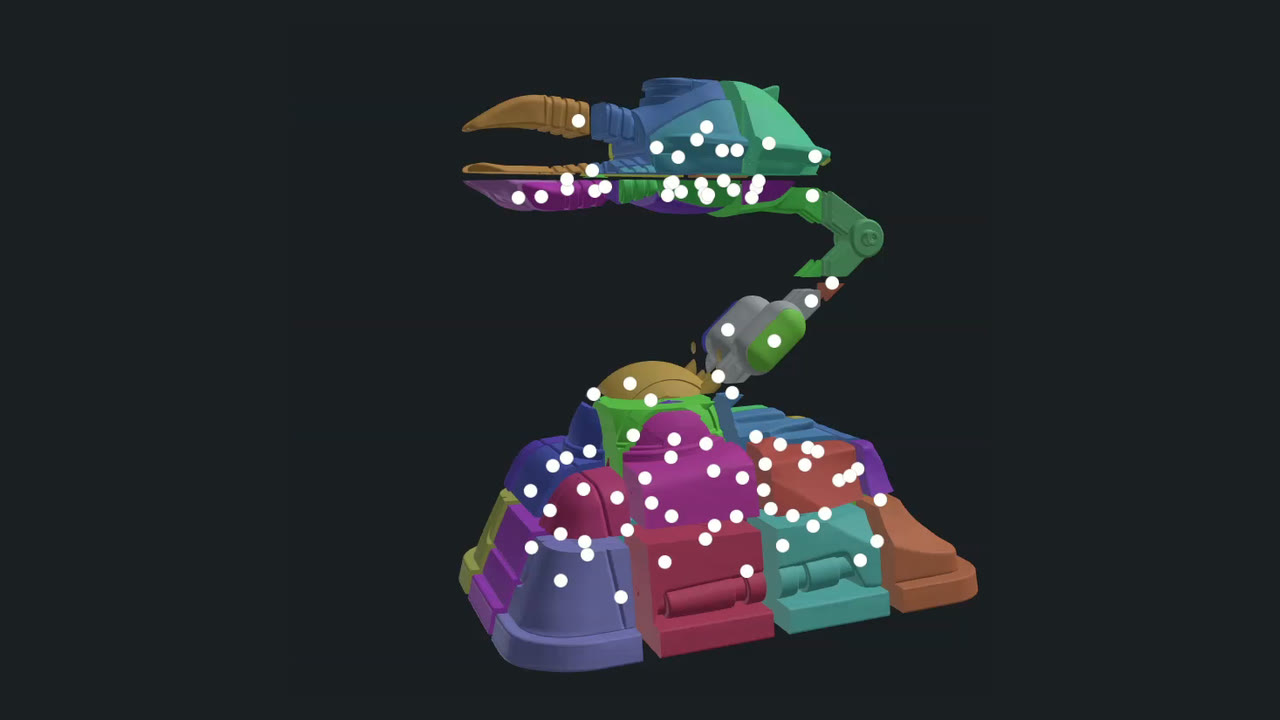
A robot 644 × 964 × 1000 mm, far too big for a normal print bed, cut into pieces that each fit. Choose your printer, pick Auto multi-plane and press Work out the cuts: Model Splitter works out how many flat cuts the model needs for every piece to fit, and spaces them out evenly. Then cut with pins, number the joints, and export every part in one go.
In the video
- The model is too big for the bed
- Choose your printer
- Auto multi-plane
- Work out the cuts
- Moving a plane, and the red warning
- Joint numbers
- Cut
- Pins, tenons or magnet sockets
- Export every part
If a plane turns red after you move it, the piece next to it no longer fits your bed: move it back to shorten the piece. Best way up, just below Work out the cuts, tries every way of standing the model up and keeps the one that needs the fewest pieces. Keep clear at each edge, in the Printer panel, keeps every piece that far in from the edge of the bed (5 mm to start).
New here? Start with Your first cut. For one cut where you choose the line, see How to split an STL that's too big for your print bed. For the joints themselves, see Cut, Push-fit or Inlay?
Try it on your own model
It runs in your browser, and the model never leaves your computer.
Open Model SplitterTool guideNo model yet? Make one from a photo or a prompt with Tripo AI, then split it here. (An affiliate link: we earn a commission if you subscribe.)